
How to use RouteBuddy Beacon
Beacon is designed to be simple. If you need to tell someone where you are, you only need a few steps.
Beacon is in preparation for iPhone and Android. The illustrations use example codes and interfaces.
Sharing your location when you need help
In an emergency, contact emergency services first and follow their advice. Beacon does not call or dispatch help. Do not delay seeking help while waiting for a location fix.
- When it is safe to do so, open RouteBuddy Beacon.
- Check the location shown.
- If a code is available, read, copy or share it with the person helping you.
A code identifies an area. If no location is available or it looks wrong, describe where you are another way.
If you are lost or unsure where you are
- Open Beacon when safe and check the location shown.
- Use Copy to put the code in a message, Spell to help you read it clearly, or Speak to let Beacon read it aloud.
- Send or read the code to the person helping you. Ask them to repeat it back so you can check it together.
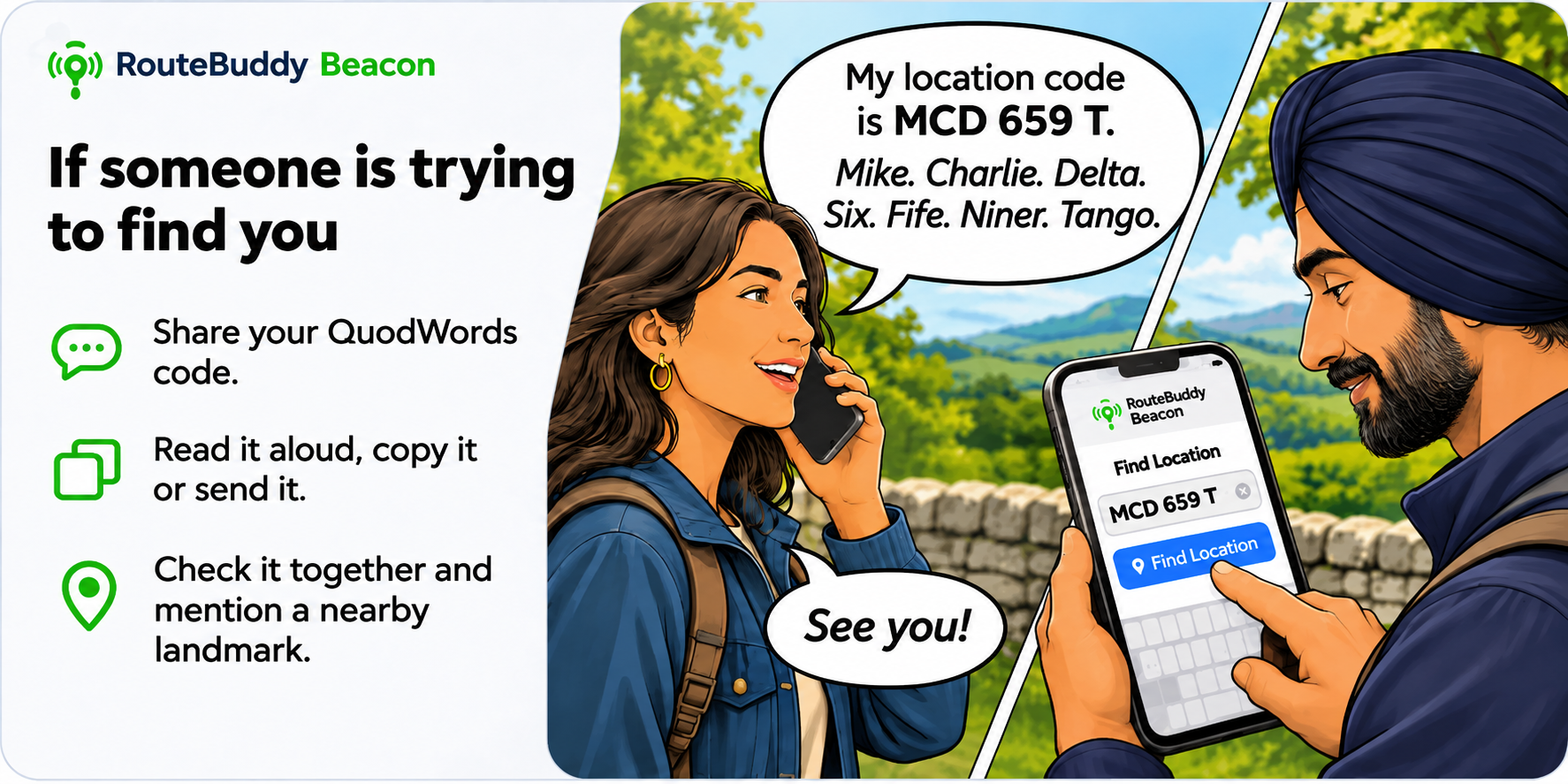
If someone is trying to find you
Give them the QuodWords code displayed in Beacon. You can read it aloud, copy it into a message or share it.
Beacon helps you communicate your location clearly. Check the code together and explain anything useful about where you are, such as a nearby landmark.
If you are asking for help
- When safe, open Beacon and check the location shown.
- If a QuodWords code is available, read or share it with the person helping you.
- Ask them to read the code back so you can check it together.
- If they have Beacon, they can use Find Location to enter the code and check the location on the map.
Tell them about anything useful nearby, such as a road, building, landmark or entrance.
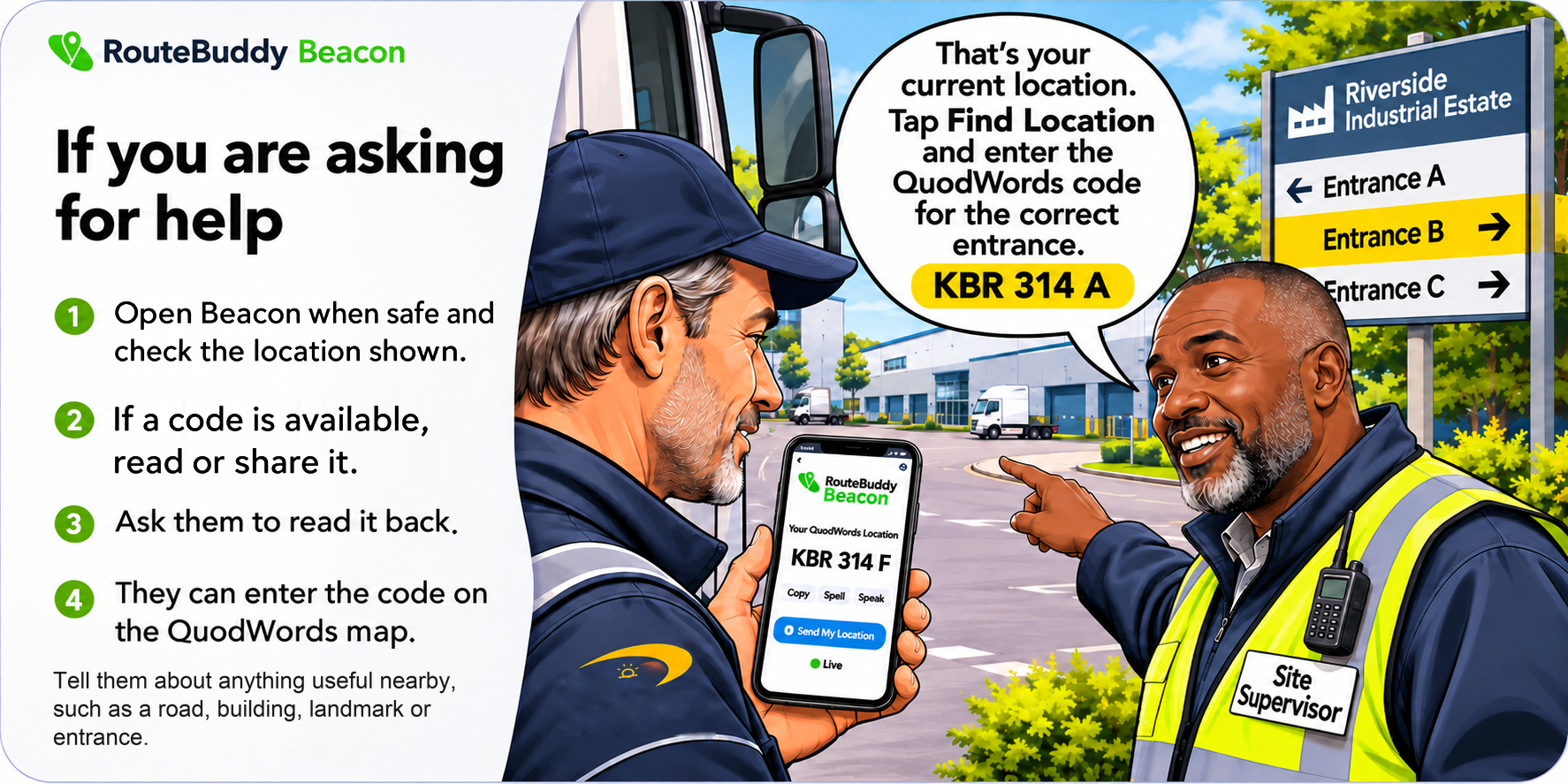
The driver’s location and the intended entrance have different example codes. Check where to go using the supervisor’s directions and entrance signs.
Accessible image description
If you are asking for help. 1. Open Beacon when safe and check the location shown. 2. If a code is available, read or share it. 3. Ask them to read it back. 4. They can enter the code on the QuodWords map. Tell them about anything useful nearby, such as a road, building, landmark or entrance. The driver’s phone shows example code KBR 314 F. The supervisor says: “That’s your current location. Tap Find Location and enter the QuodWords code for the correct entrance.” Example KBR 314 A is highlighted. The sign lists Entrance A left, Entrance B right and Entrance C right. The map shown is illustrative; the public QuodWords map is not yet available. Beacon users can use Find Location.
Checking a shared location
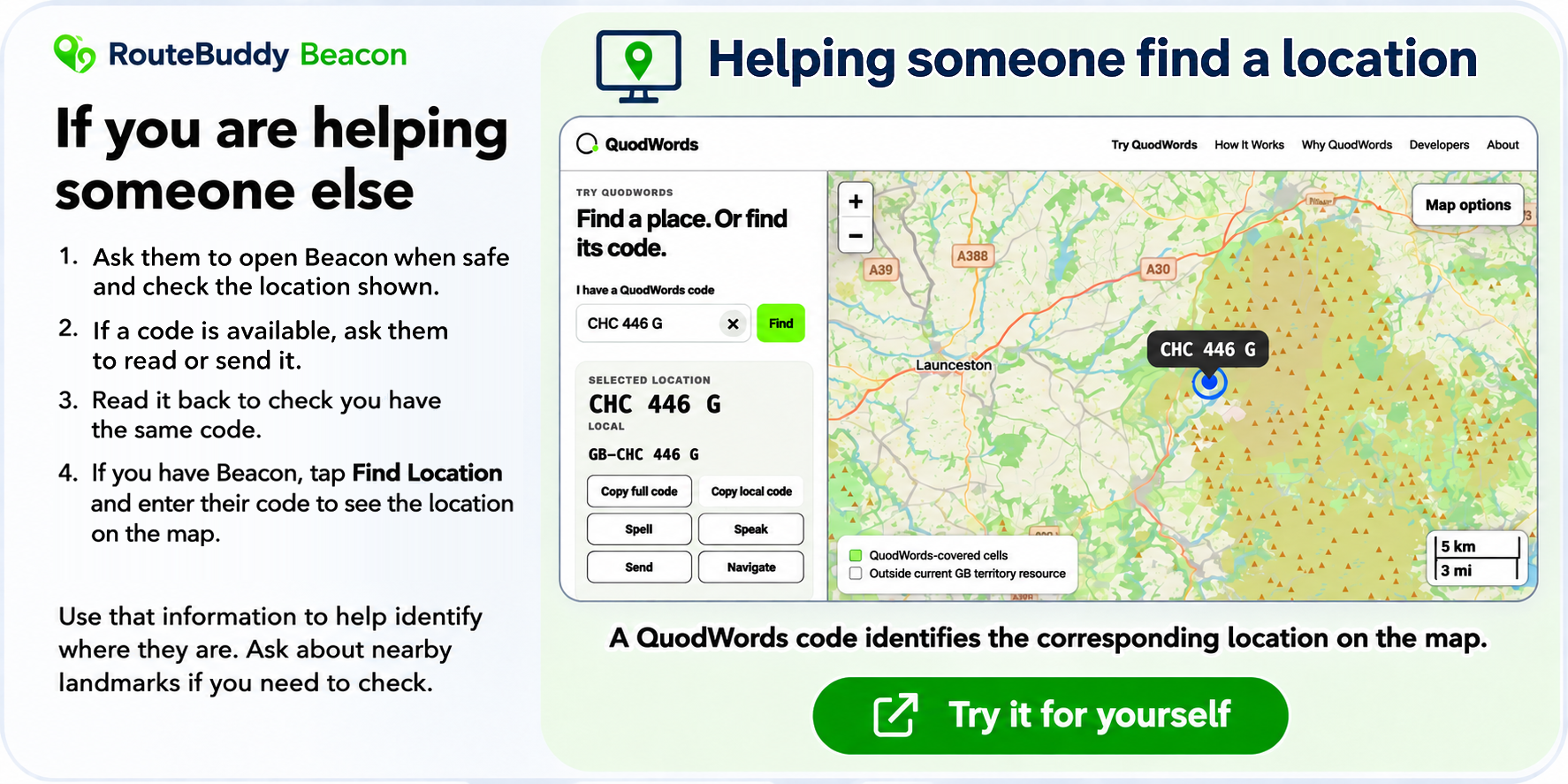
An illustrative recipient view for checking a location code against a map and nearby landmarks. It does not represent an emergency-service integration.
Accessible image description
Helping someone find a location. If you are helping someone else: 1. Ask them to open Beacon when safe and check the location shown. 2. If a code is available, ask them to read or send it. 3. Read it back to check you have the same code. 4. If you have Beacon, tap Find Location and enter their code to see the location on the map. Use that information to help identify where they are. Ask about nearby landmarks if you need to check. The illustrative map interface displays CHC 446 G and GB-CHC 446 G, map controls, code actions and a coverage legend. Visible map labels include Launceston, A39, A388 and A30. Below it: “A QuodWords code identifies the corresponding location on the map.” An illustrated button reads “Try it for yourself”. This example does not verify a real code-to-location mapping. The illustrated website button is inactive; the public QuodWords map is not yet available.
Select the image to view it larger. The illustrated button is inactive; the public QuodWords map is not yet available. Learn about QuodWords.
Everyday situations
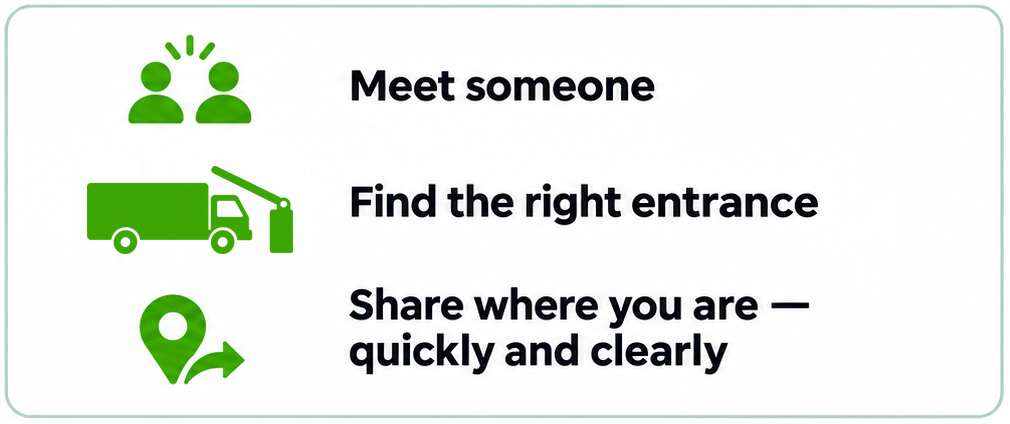
Beacon can help whenever you need to identify or communicate a location clearly.
You might use it when meeting someone, finding the right entrance, dealing with a breakdown, taking a wrong turn, or explaining where you are in an unfamiliar place.
Learn more
For support, email support@routebuddy.com.